L0
No AI
Do this stage without any AI tool.
Follow the buttons in order. These are real PACT screenshots with fictional classroom data. Click any screenshot to enlarge it.
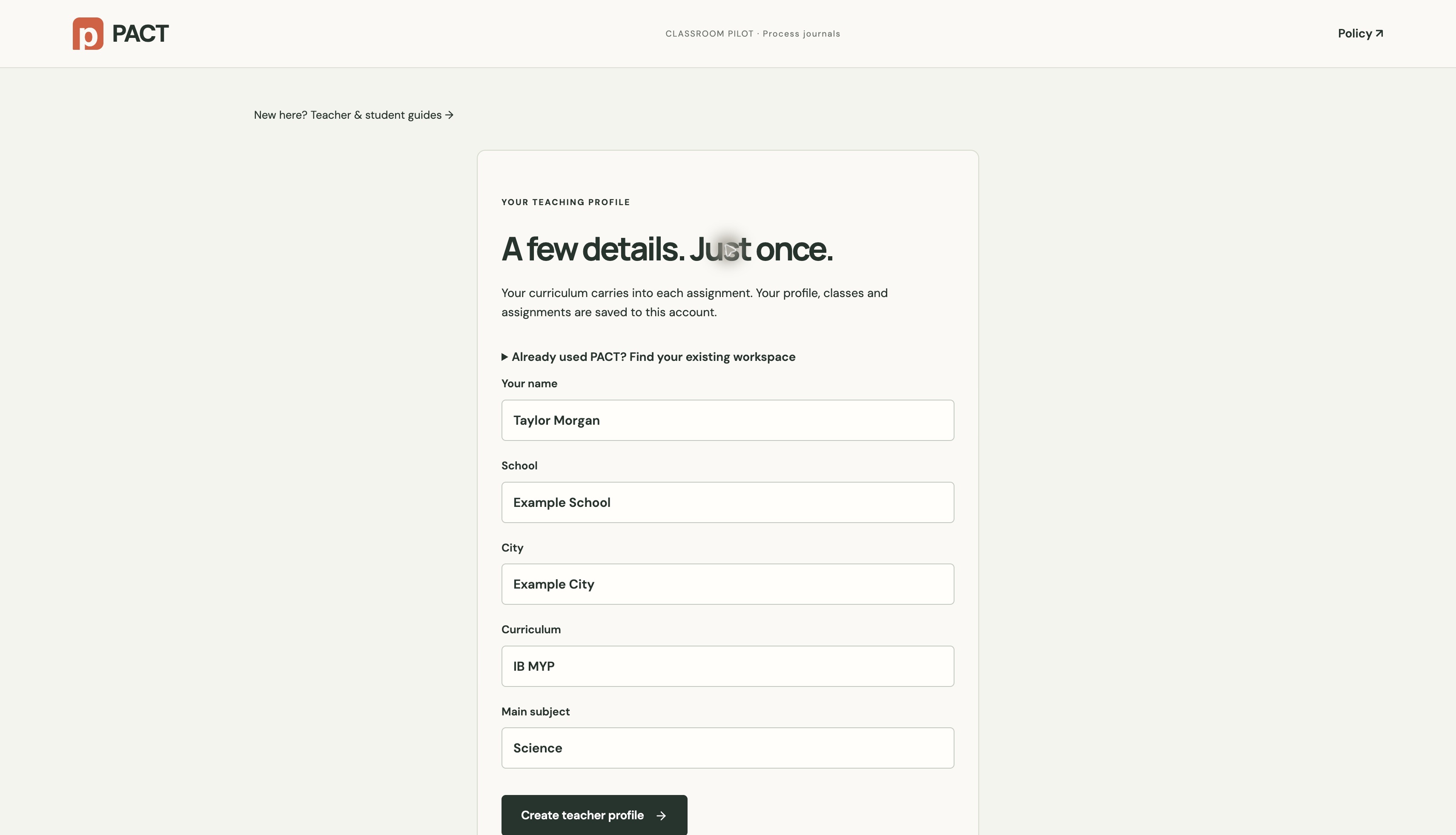
Open Classroom → I’m a teacher. Choose Google, email or ChatGPT. With email, request a code and enter the latest code in the same browser. Fill in your name, school, city, curriculum and subject, then click Create teacher profile. Returning teachers use their existing account; their work stays saved after sign-out.
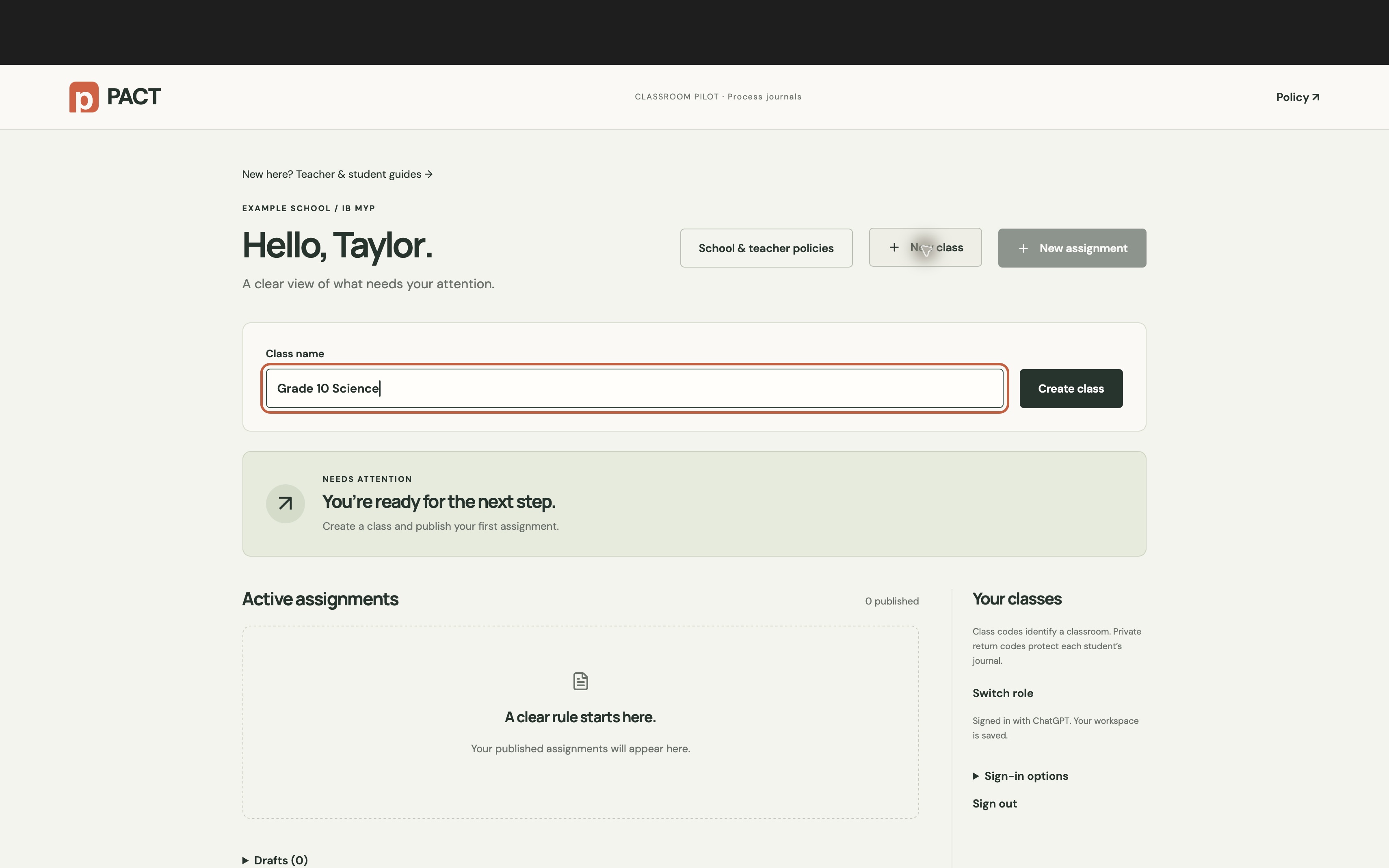
Click + New class, type a class name, then click Create class. Both controls work for your first class. Your workspace shows its six-character class code. Students use that code or the join link from a published assignment.
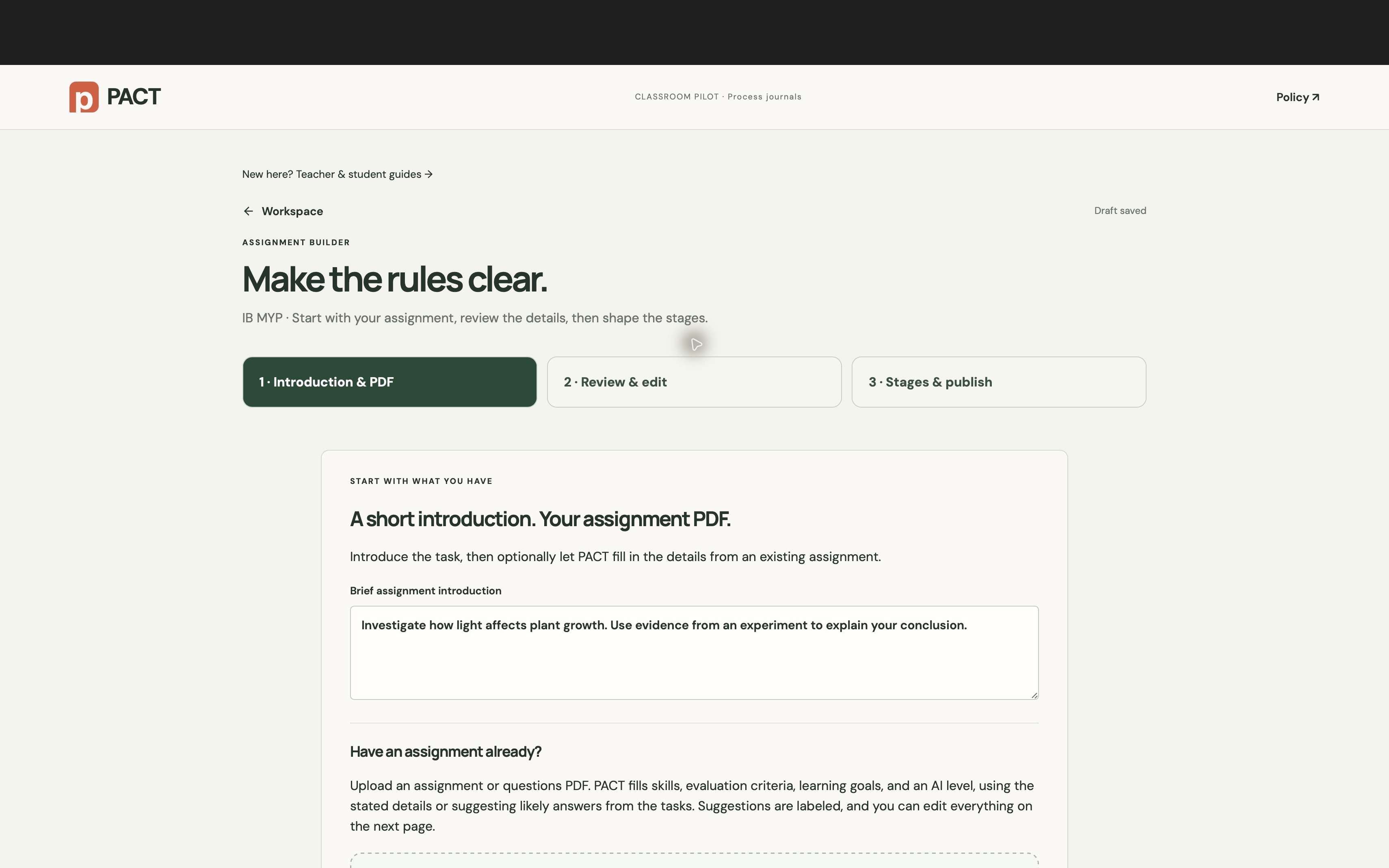
Click + New assignment. Write a short introduction, then drop your assignment PDF into the upload area or click Choose assignment PDF. Click Autofill & review. A questions-only PDF is enough for PACT to suggest likely skills, criteria, goals and an AI level. For scans without readable text, open Paste or correct assignment text. To write everything yourself, choose Continue without autofill.
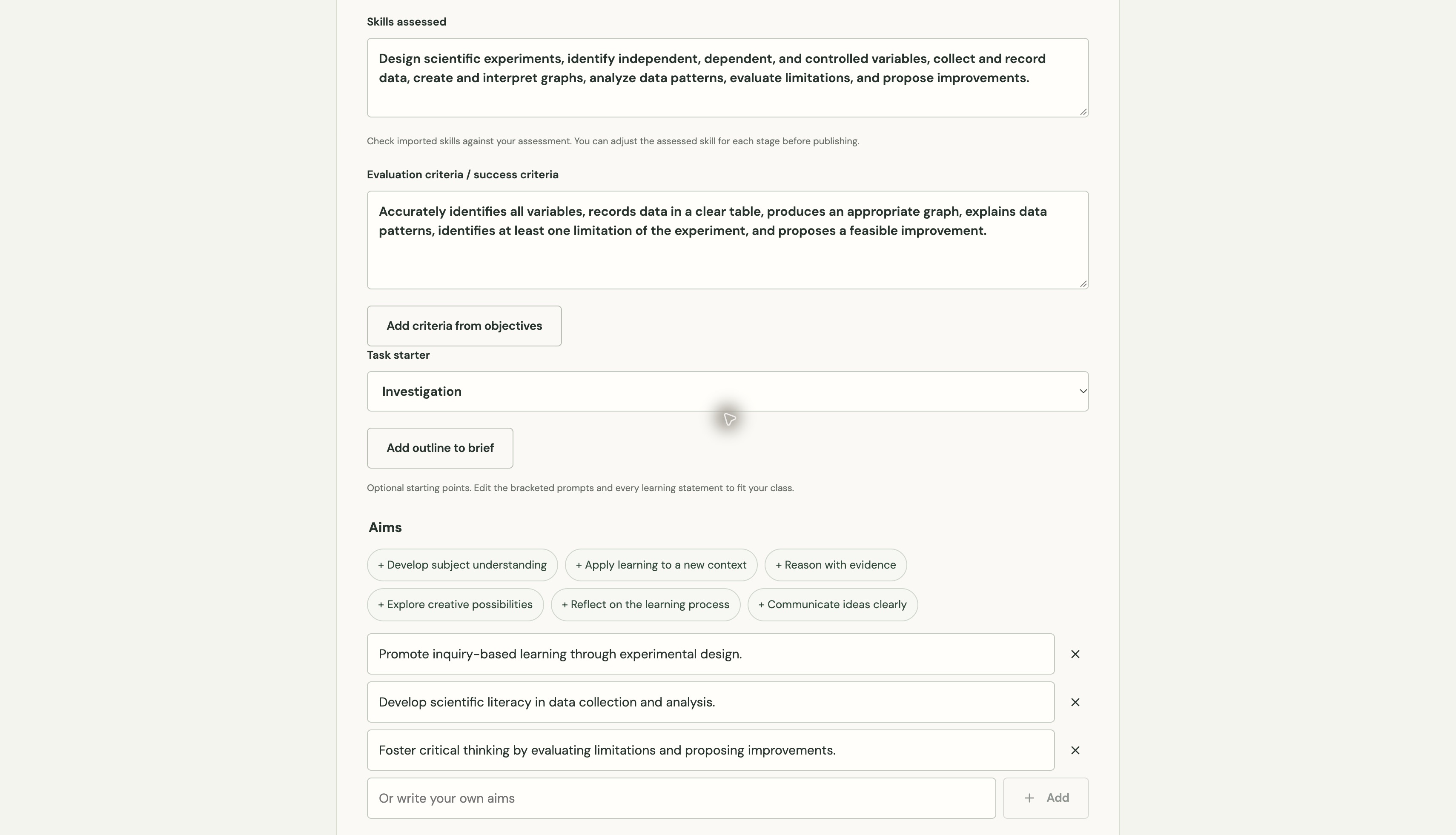
In 2 · Review & edit, set the title, class, grade and due date. Read Skills assessed and Evaluation criteria. Edit them to match your assessment. Add, remove or rewrite aims and objectives. Autofill labels inferred suggestions; they are proposals for your review. Attach other documents under Additional documents & learning materials.
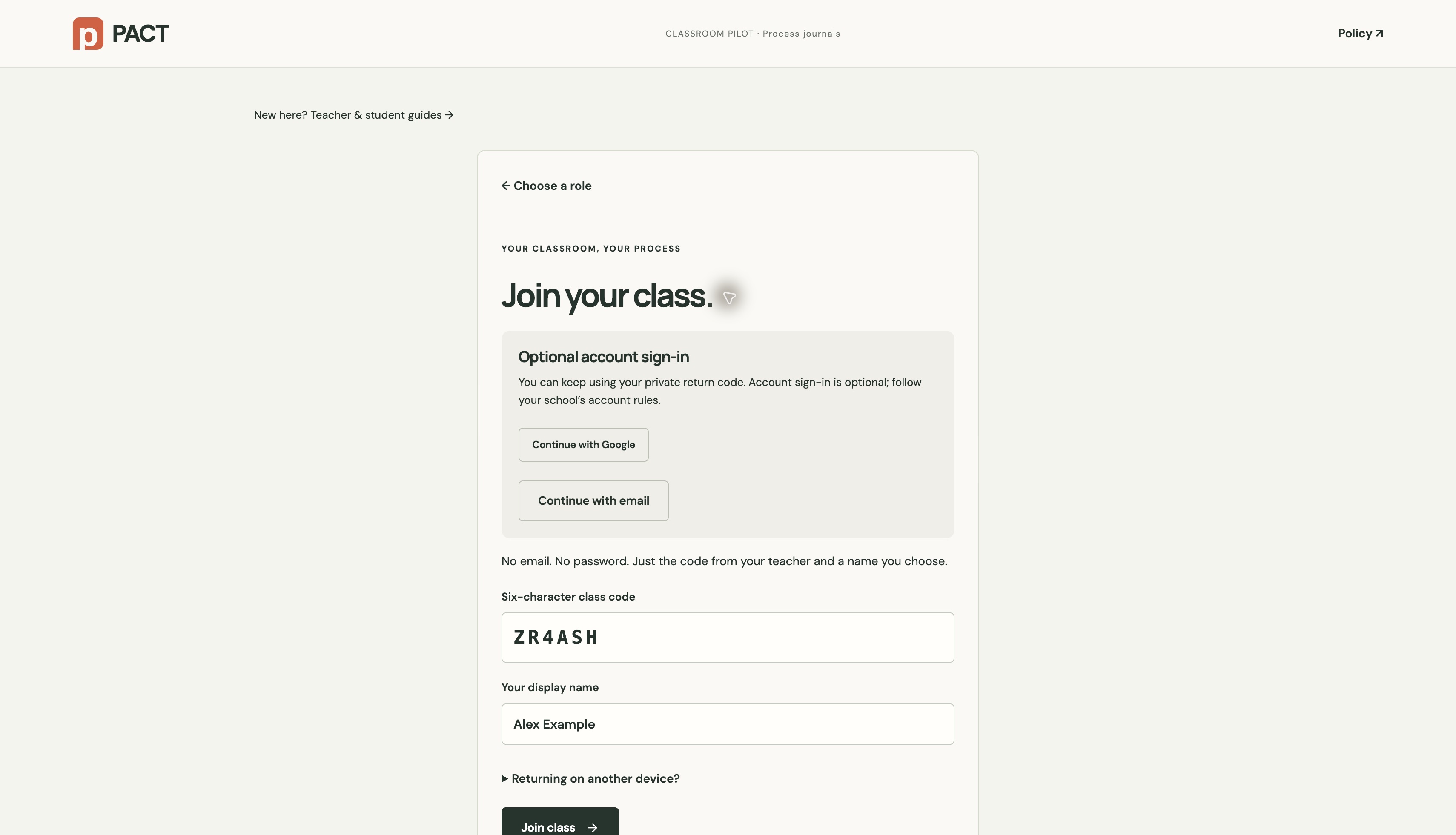
Check Default AI level and Policy for this assignment. For a school policy, first use School & teacher policies in the workspace to upload or adapt it, then select it here. Under Journal response mode, choose Writing, Speaking or student choice. Speaking saves a transcript, not audio, and provides a written alternative when needed. Click Continue to stages.
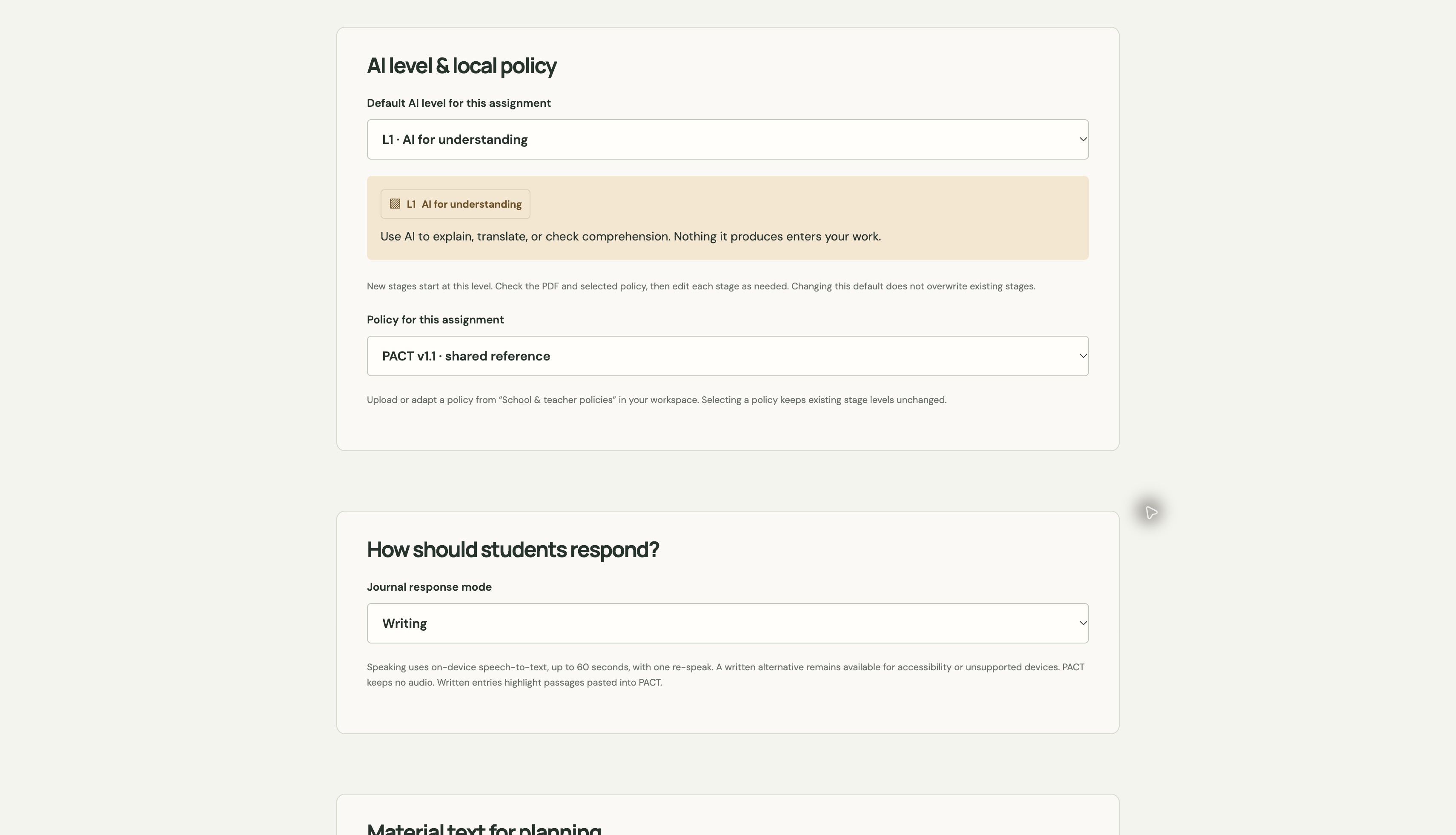
In 3 · Stages & publish, click Add a stage. Give it a name, assessed skill, due date, AI permission, rationale and instructions. Open Stage files & learning materials to attach resources for that stage. Repeat for each stage and use the arrows to reorder them. Review every field, then click Publish assignment. Published rules are fixed in this pilot, so complete your edits first.
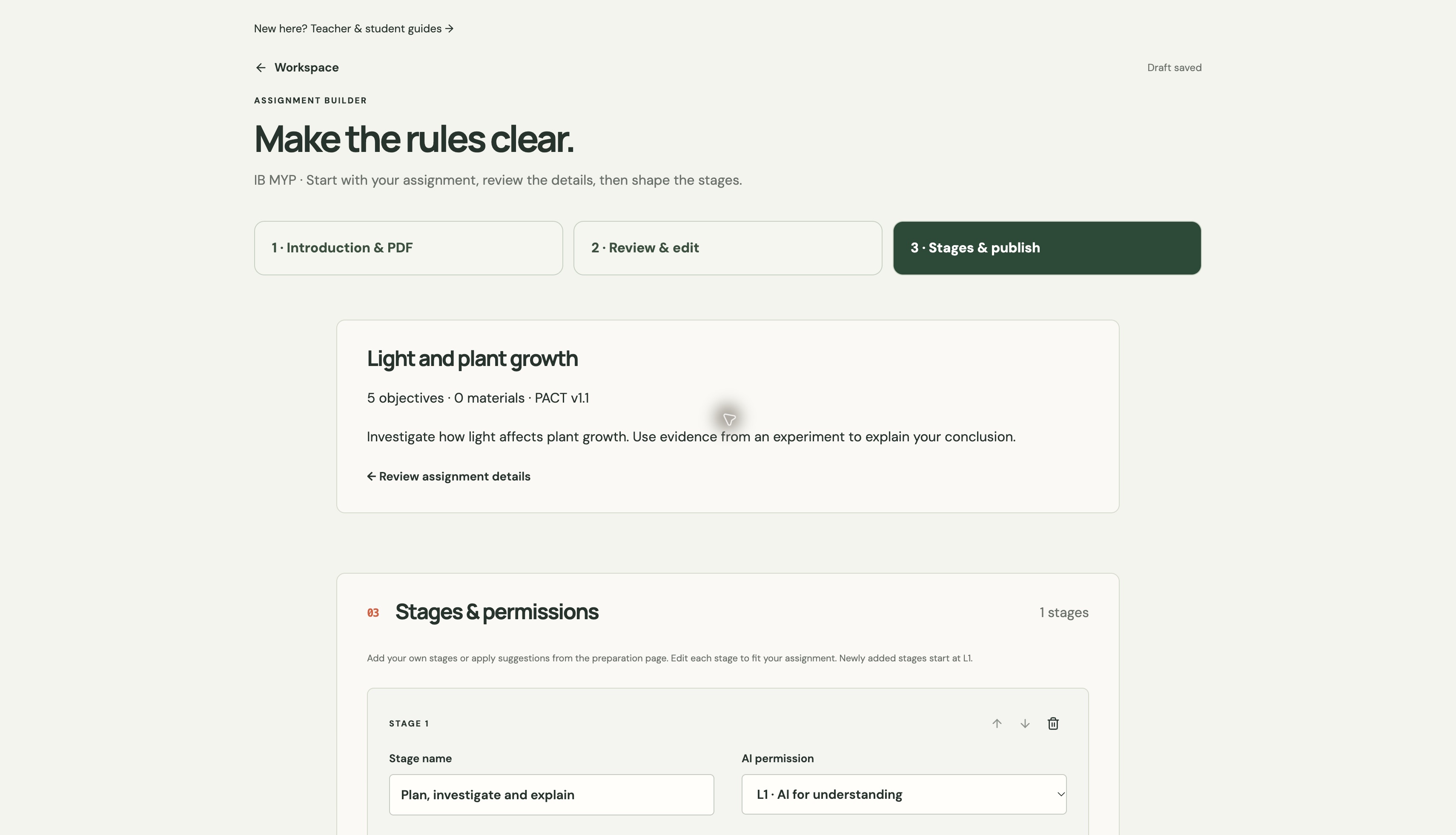
Open a published assignment. Share its class code, Copy join link or QR code. In Class progress, click a student’s name to read saved entries and signed disclosure history. Highlighted passages are surviving text pasted into PACT. Discuss them with the student; a highlight does not establish AI use or misconduct.
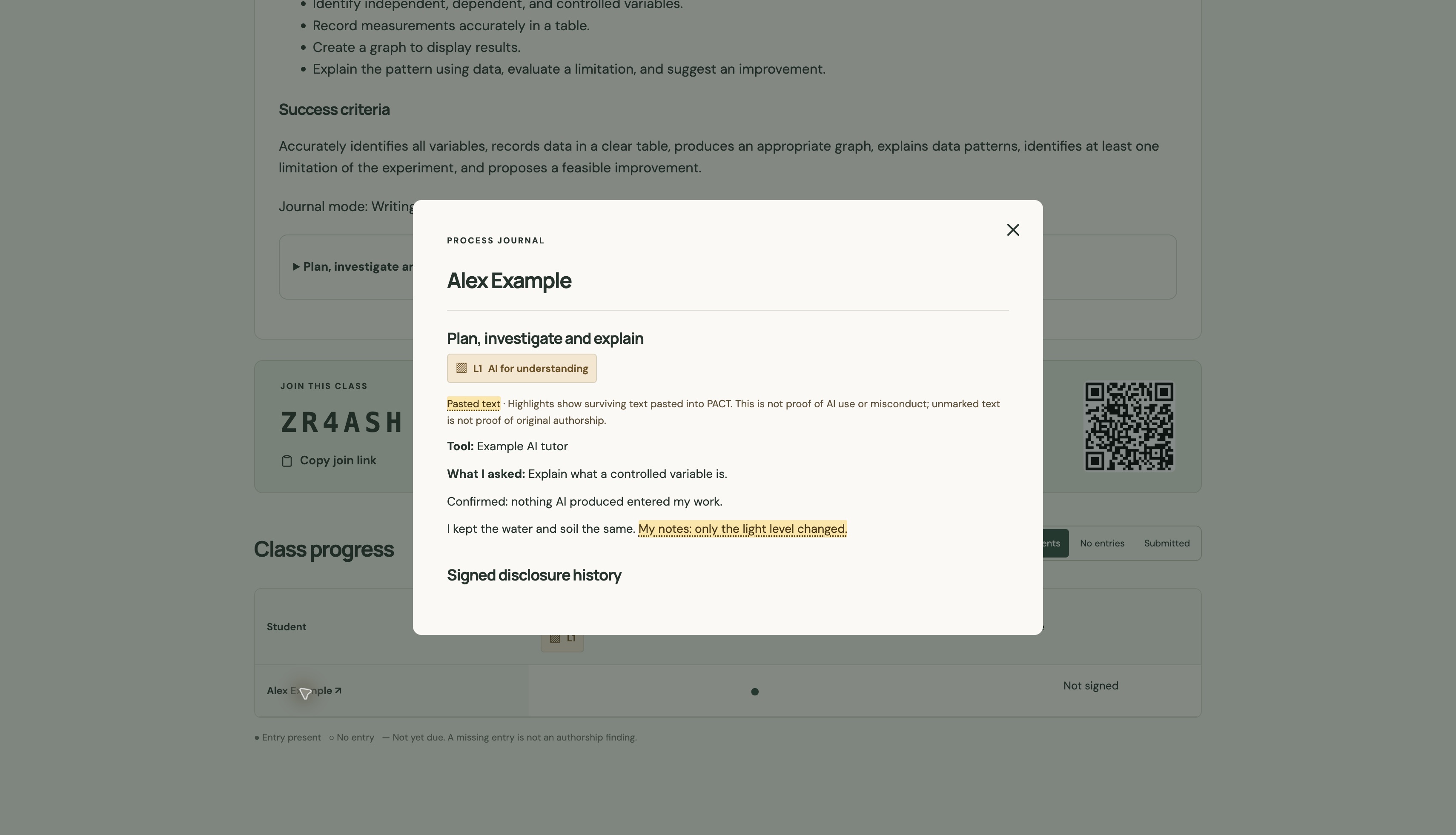
Open Classroom → I’m a student. Enter the six-character class code and a display name your teacher will recognise, then click Join class. Save the private return code shown next. The code pictured here belongs to a fictional example: use the one your teacher gives you. Google/email sign-in is optional.
Choose an assignment, then select your stage under I’m working on. Read its AI level, due date, instructions and files before starting. Open Assignment brief, materials & all stage rules for the full task. Ask your teacher when a permitted use is unclear.
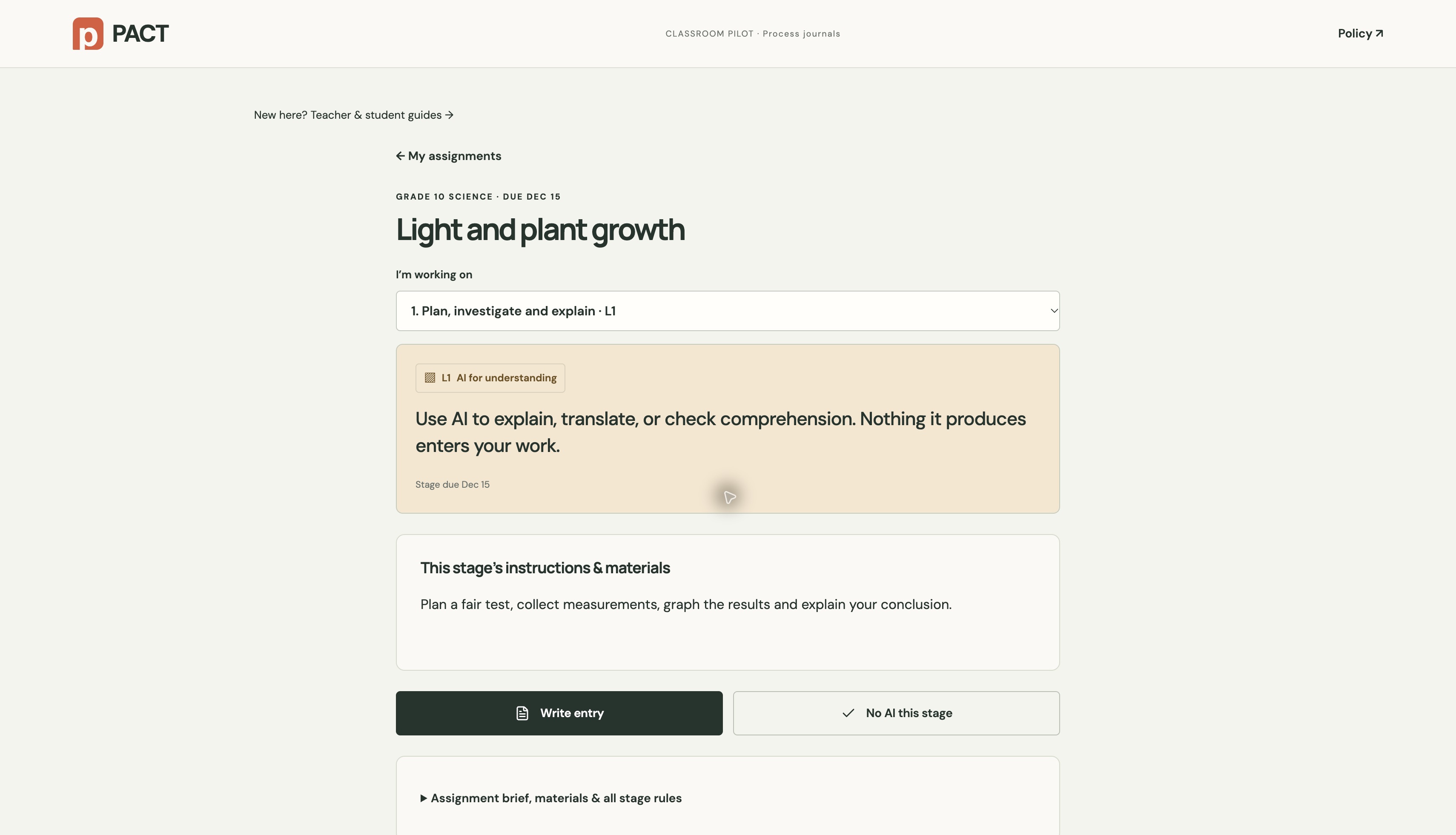
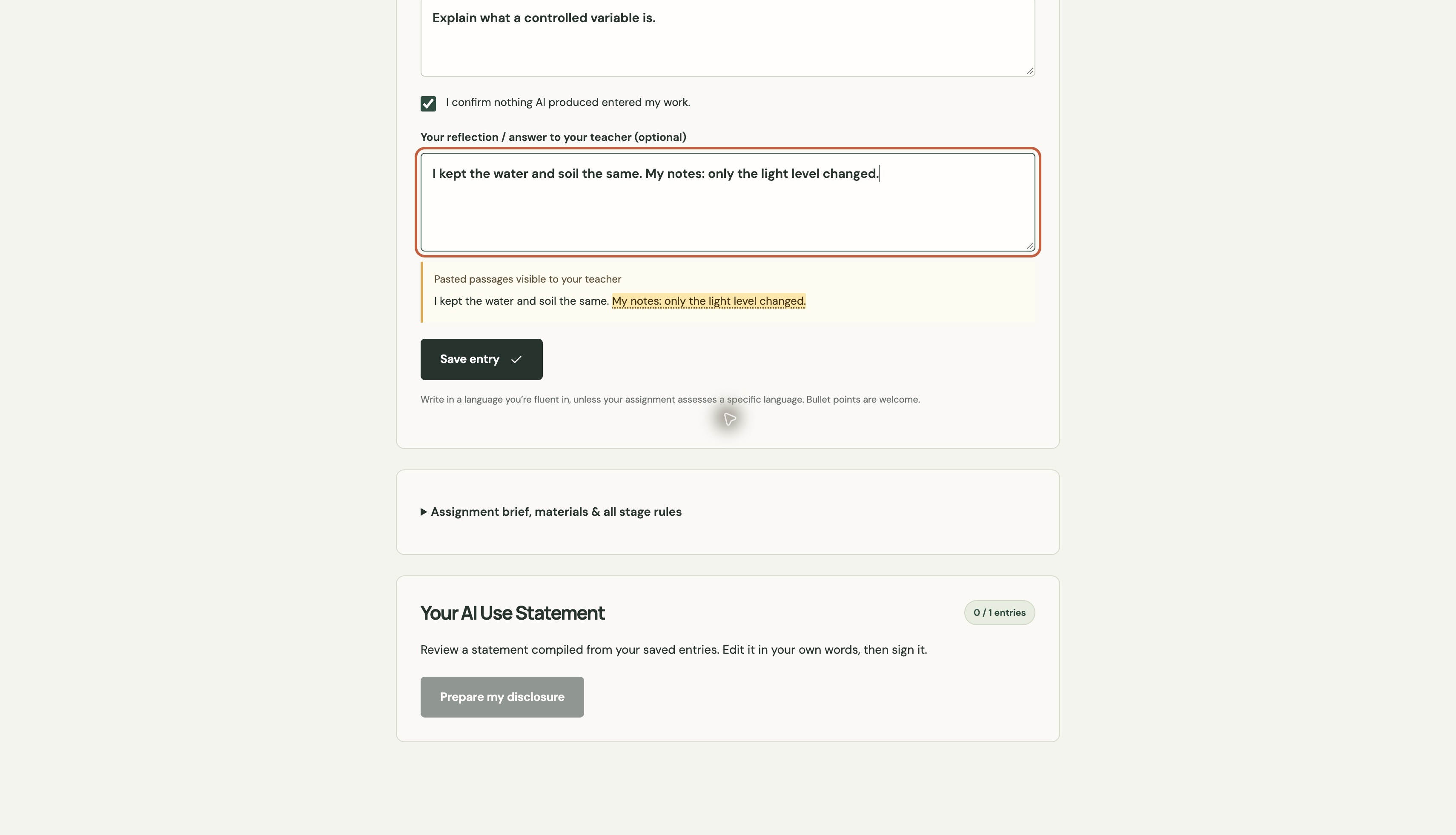
Choose Write entry, or No AI this stage if that is true. Answer the fields shown for your stage. In writing mode, pasted passages appear in the highlight preview. In speaking mode, choose a language, Start speaking, Stop, and review the transcript; on-device browser support is required. Use the written alternative when needed. Click Save entry and wait for Entry saved. Repeat for every stage.
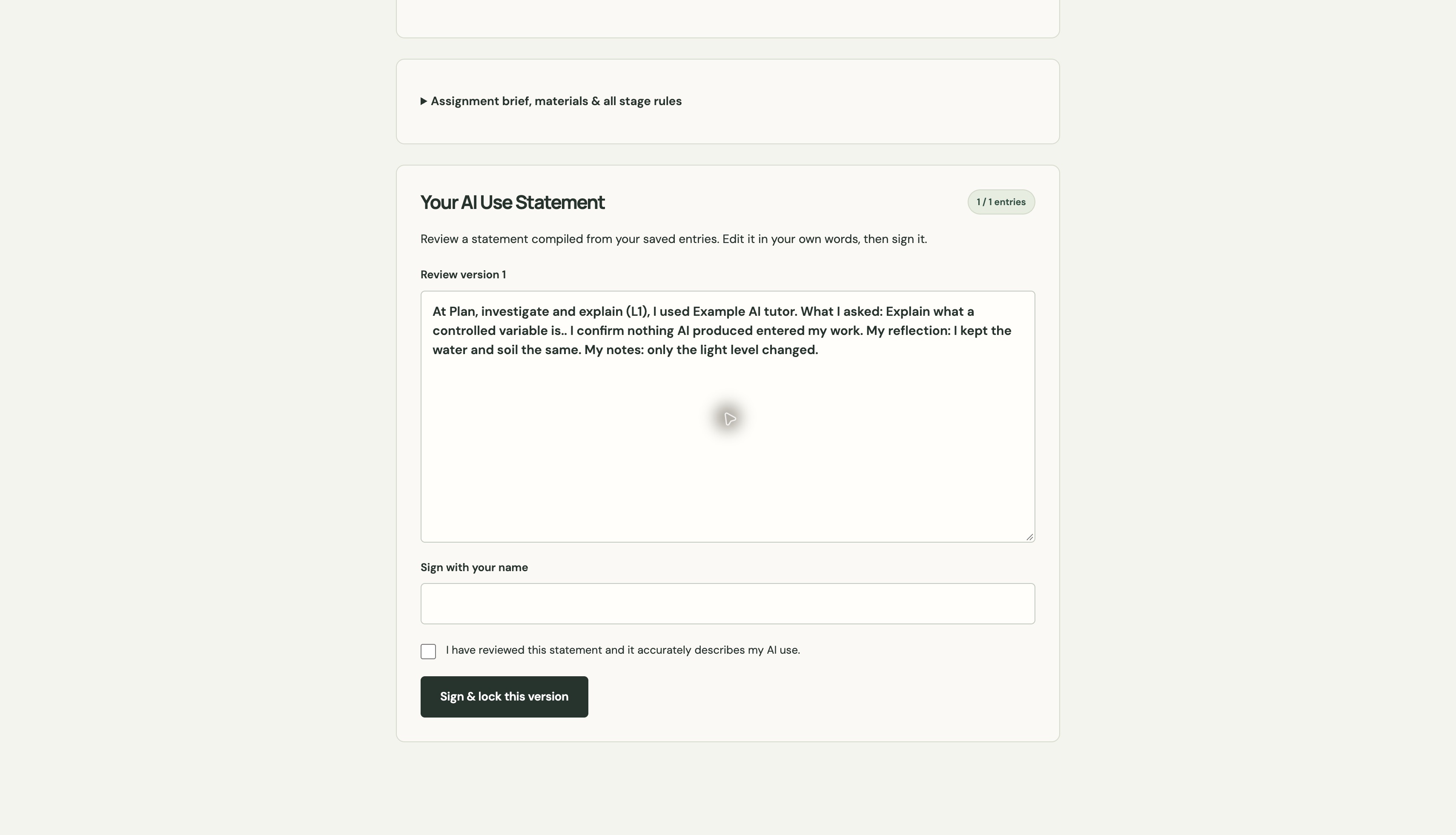
Once all stage entries are saved, click Prepare my disclosure. Read and correct the statement, type your name, and tick the accuracy confirmation only when it is true. Click Sign & lock this version. To change a signed statement, start a revision, update your entries and sign the new version.
Do this stage without any AI tool.
Use AI to explain, translate, or check comprehension. Nothing it produces enters your work.
Generate, draft, or critique with AI. Log it. The final decisions must be yours.
Use AI freely here. Log what you used and reflect on what it changed.
Check your address and spam folder. Wait at least a minute before resending, then use only the latest code in the browser where you requested it. Requests expire after ten minutes or five incorrect attempts. Email has sending limits; Google and ChatGPT remain alternative sign-in options. Students can still use their private return code.
You can complete every field manually. AI suggestions require site-owner configuration, may have daily limits, and can make mistakes. A failed suggestion does not prevent assignment creation.
Use the device where you joined, or enter your original class code, display name and private return code under “Returning on another device?” You can also use your connected Google or email account if you linked one. The shared class code alone cannot reopen someone else’s journal. Ask your teacher for help; this pilot does not include a teacher reset flow. Avoid creating duplicate profiles until you have checked your saved access.
Check microphone permission and browser support. Speech requires a compatible browser with on-device recognition and a downloaded language pack. Ask your teacher for an accessible alternative if speech is unavailable. Do not assume that PACT is recording or storing audio.
No. It means text was pasted into a tracked field in PACT. It does not identify the source or establish AI use, and unhighlighted text does not prove original authorship.
Teachers can read their class’s coursework. The owner dashboard shows aggregate use. Optional analytics avoid journal content, file content, and full URLs. Read the privacy and analytics details or turn analytics off.